
Grip
Control Ableton Live from your iPhone
Alpha v0.1.0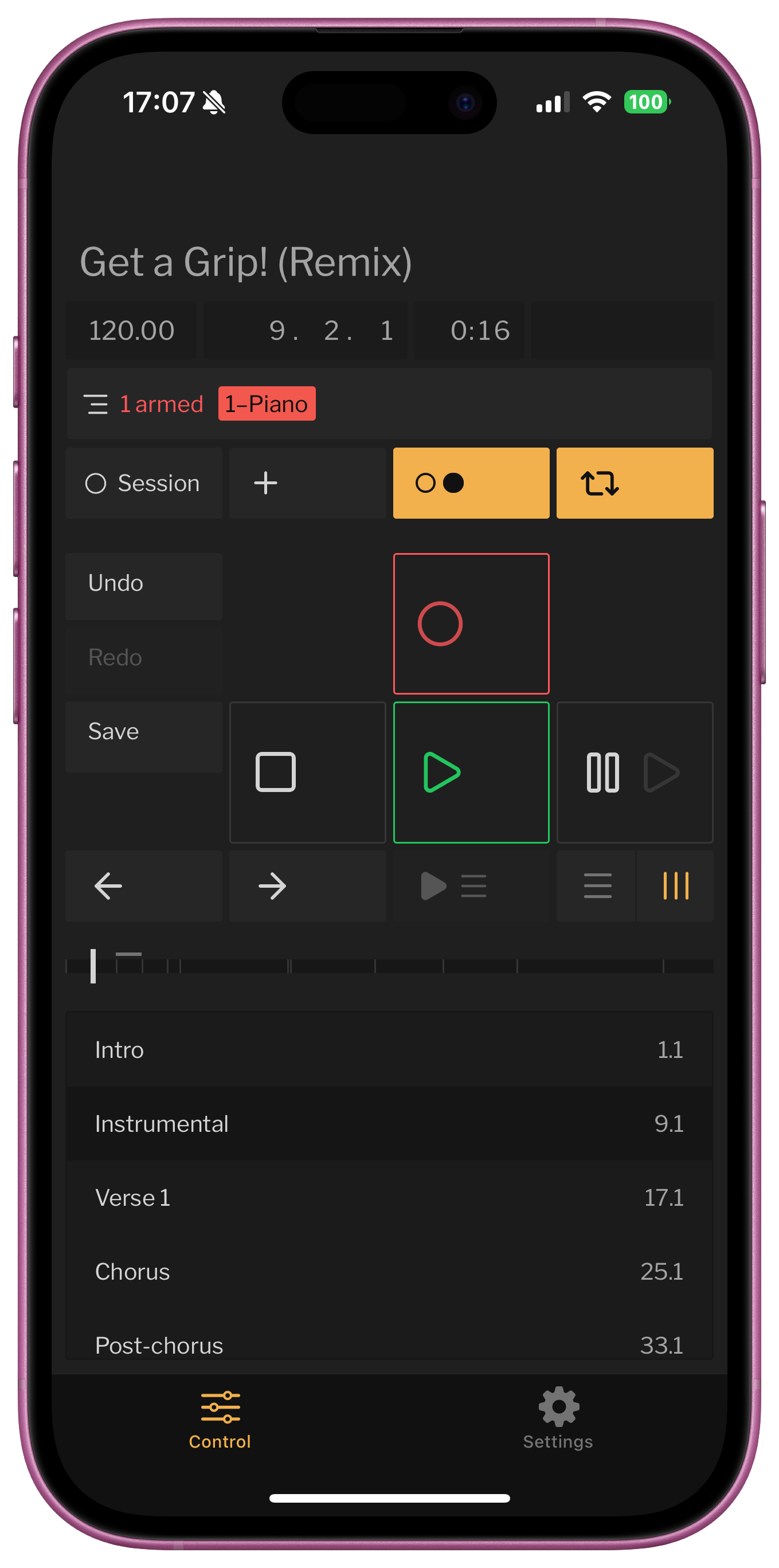
How It Works
Grip
(iPhone)
↔
Grip
(Mac)
↔

Ableton Live
(Mac)
Grip connects over Wi-Fi to control Ableton Live.
1. Install on iPhone
1
Install TestFlight
TestFlight is Apple's app for testing beta apps. Get it on the App Store
2
Join the Grip Beta
Open this link on your iPhone to install Grip via TestFlight.
Open TestFlight Invite2. Install on Mac
1
2
Move to Applications
Drag Grip.app to your Applications folder and open it.
3
Allow in Security Settings
If macOS blocks the app, go to System Settings → Privacy & Security and click "Open Anyway".
3. Set Up Ableton Live
1
Open Ableton Live Preferences
Go to Live → Settings (or press ⌘,)
2
Add Grip as Control Surface
In the Link, Tempo & MIDI tab, set Control Surface to Grip.

4. Connect
1
Same Wi-Fi Network
Make sure your iPhone and Mac are on the same Wi-Fi network.
2
Open Both Apps
Open Grip on your Mac (it runs in the menu bar) and on your iPhone. They'll connect automatically.